
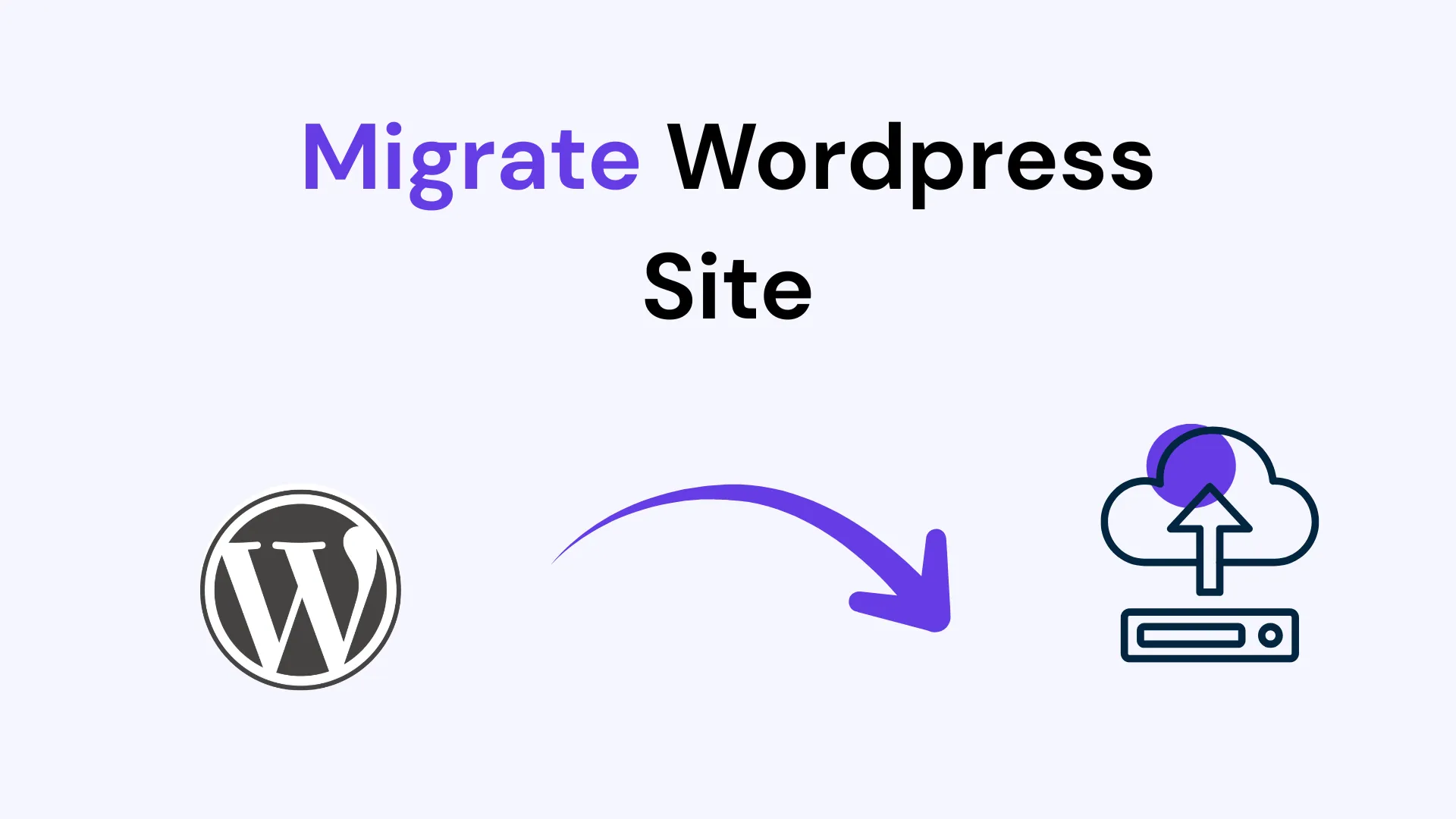

Stop using All-in-One WP Migration for large sites unless you have the paid extension. The free version creates a bottleneck with a 512MB upload limit.
We are using WPvivid Backup & Migration. Why?
- It’s actually free. No hidden “512MB limit” that forces you to buy a $69 extension.
- Server-to-Server: You don’t need to download a 5GB zip file to your slow laptop and then re-upload it. The servers talk to each other directly.
- Auto-Migration: It handles the database search-and-replace automatically.
The Step-by-Step Guide
Prerequisites:
- Source Site: The site you want to move (Live).
- Destination Site: A fresh WordPress installation on your new hosting (Empty).
Step 1: Install the Plugin on BOTH Sites
Go to Plugins > Add New on both your Source and Destination sites. Search for WPvivid. Install and Activate “WPvivid Backup & Migration”.
Step 2: Get the “Key” from the Destination
We need to tell the Source site where to send the data.
- Log in to your Destination Site (the new one).
- Go to WPvivid Backup > Key tab.
- Select “12 Hours” (or any duration) and click Generate.
- Copy the long code it generates.
Step 3: Connect and Transfer from the Source
- Log in to your Source Site (the old one).
- Go to WPvivid Backup > Auto-Migration tab.
- Paste the key you just copied into the box.
- Click Save.
- Once the connection is confirmed, select “Database + Files” (usually the default).
- Click Clone then Transfer.
Now, wait. You will see a progress bar. The Source site is zipping itself up and shooting the files directly to the Destination server. You can close the tab if you want, but I prefer to leave it open to watch for errors.
Step 4: Restore on Destination
- Once the transfer says “Completed,” go back to your Destination Site.
- Go to WPvivid Backup > Backup & Restore tab.
- Scroll down to the “Backups” list. You should see a new backup file there that says “Received.”
- Click Restore next to that file.
- Confirm the popup.
Wait again. The plugin is now unzipping the files and overwriting the empty database with your live site’s data.
Step 5: Log In and Cleanup
Once finished, it will log you out.
- Log in with your OLD credentials (from the Source site). The new site now has the old site’s users and passwords.
- Crucial Step: Go to Settings > Permalinks and click Save Changes twice. This flushes the
.htaccessfile and fixes 404 errors on your inner pages.
5 Practical Tips (Don’t Ignore These)
- The PHP Version Trap: Ensure your new host is running the same or newer PHP version as your old host. If your old site is on PHP 7.4 and you migrate to a host forcing PHP 8.3, your old plugins might crash the site immediately. Check this in your hosting panel before you migrate.
- Disable Caching Plugins First: Before you start the migration, deactivate LiteSpeed Cache, WP Rocket, or Autoptimize on the Source site. Caching plugins can interfere with the file zipping process.
- What if the Site is Massive (5GB+)? If WPvivid fails because your site is absolutely massive, use Migrate Guru. It is also free but processes the migration on their external servers, which bypasses your cheap hosting’s timeout limits.
- Exclude the Junk: In WPvivid settings on the Source site, you can choose to exclude folders. If you have 2GB of “Backup” folders from other plugins, exclude them. Don’t migrate backups of backups.
- DNS Propagation: After migration, if you are pointing your domain to the new host, remember it can take up to 24 hours for the world to see the new site. Use a tool like
whatsmydns.netto track where your domain is pointing.